

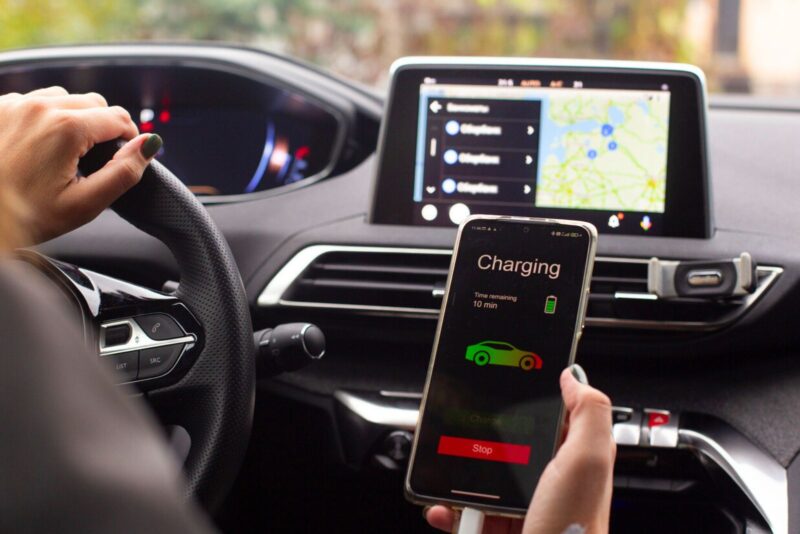
You don’t need to buy a new car or gut your dashboard to get Android Auto running in your ride. If you're still rocking an older vehicle with nothing more than basic Bluetooth or (gasp) a stock radio, there’s a clever workaround — and it’ll cost you less than a cup of coffee and a croissant.
For around $5, you can transform an old Android phone or tablet into a full-fledged Android Auto display, without installing any pricey hardware or losing steering wheel controls. All it takes is one smart app, a bit of setup, and a pinch of DIY spirit. Here's how it works.
Why bother with Android Auto in the first place?
Let’s face it: many older cars were never built with modern driving in mind. Built-in navigation is usually outdated, and juggling apps on your phone while driving isn’t exactly safe — or legal in some places. Android Auto provides access to hands-free navigation, music, calls, and voice commands, all within a clean, easy-to-read interface designed specifically for drivers.
Retrofitting your vehicle with a new infotainment system can cost hundreds, if not thousands, of dollars. Even cheaper aftermarket options come with downsides, including clunky touchscreens, weak audio, and awkward installations that can disable built-in features such as backup cameras or steering controls.
That’s where this app-based solution shines.
Turn any old Android into your Android Auto dashboard
Instead of buying new hardware, you can reuse an old Android phone or tablet you have lying around. The key to this method is a little app called Headunit Reloaded, available on Google Play for under $5. This app emulates Android Auto on a separate device — meaning your phone stays connected, but your display happens on another screen.
Want to use it wirelessly? Pair it with Wi-Fi Launcher, a free app that helps bridge the connection. Whether you mount your spare device to the dash or clip it to the windshield, you’ve got a DIY Android Auto setup that works without touching your car’s wiring.
How to use Android Auto directly on your phone
If you’re happy using Android Auto right on your primary phone, the setup couldn’t be more straightforward:
- Download Headunit Reloaded. Grant the permissions it requests.
- Disable screen overlay, which the app needs to manage incoming calls without interruption.
- Tap “Self Mode” inside the app — voilà, Android Auto loads instantly.
- If the interface looks oversized, tweak the pixel density in the app’s settings until everything fits your screen comfortably.
No cables, no fuss. Just launch and go.
Want a bigger screen? Use a tablet instead
Using a tablet provides more screen space — ideal for maps, music, and multitasking. Here’s how to set that up using a wired connection:
- Download Headunit Reloaded on the tablet and allow the necessary permissions (location, microphone, notifications, etc.).
- Disable screen overlay, just as you did on your phone.
- Connect the tablet to your phone via USB. You may need a USB-C hub to keep both devices charged.
- When prompted, select ‘Headunit Reloaded' as the default app for USB and approve all subsequent prompts.
If you see a black screen, simply unplug and replug the USB cable — it usually resolves the issue.
Prefer wireless? Here’s how to do it
If the sight of dangling cables drives you mad, wireless mode is your friend — though setup takes a few more steps:
- On the tablet, set Headunit Reloaded’s connection type to Wi-Fi Client Mode and ensure audio output is disabled (so sound plays through your car’s system).
- Install Wi-Fi Launcher on your phone. Grant it all requested permissions and disable battery optimization so it runs consistently in the background.
- Create a Wi-Fi hotspot on your phone and connect the tablet to it.
- In Wi-Fi Launcher, link your car’s Bluetooth to auto-launch the app every time you start the engine.
Once everything’s configured, Android Auto will launch on the tablet whenever you start your car — no wires needed.
Final tips before you hit the road
- Keep your devices charged or invest in a multi-port charger.
- Adjust the resolution settings to ensure the interface scales well.
- Only use this setup when it’s safe — distracted driving is still distracted driving.
For less than $5 (or around $20 if you include a basic mount), you can give your car a smart upgrade that rivals built-in systems. It's a clean, cheap, and surprisingly fun project that brings modern convenience to any old dashboard.