




Introduction
Upgrading your Android phone? The first step is transferring data from the old phone to the new one. People don't want to lose contacts, texts, applications, or their favorite photographs. Android makes phone-to-phone transfer easier than ever, thanks to MobileTrans.
This step-by-step article demonstrates how to transfer data from one Android device to another using various techniques. We will explain what content can be moved, how to do it safely and fast, and what to watch out for. This article covers all you need to know to transfer content from Android to Android without difficulty or data loss using a PC, Wi-Fi, or cloud services.

What You Can Transfer Between Android Devices
With the right tools, you can transfer the most essential Android data from one phone to another. What you can transfer:
1. Contacts: Google or a transfer application can conveniently transfer your saved phone numbers and contact information.
2. Messages: SMS and WhatsApp history can be transferred, depending on the method.
3. Photos & Videos: Cable, cloud, or transfer software can transfer your gallery, albums, and camera roll.
4. Apps & App Data: Most applications can be reinstalled, and MobileTrans or Google Backup can recover app data.
5. Call Logs: Record recent and missed calls during transfer.
6. Music and Documents: Easily move all locally stored media and crucial papers.
7. System Settings: Supported devices can transfer Wi-Fi passwords and settings.
The Best Way to Transfer Data from Android to Android: Using MobileTrans
Upgrading to a new Android phone? It can be risky to switch from Samsung to Xiaomi or from Huawei to Google Pixel, especially when transferring vital data. Wondershare MobileTrans helps. One of the most dependable and user-friendly phone-to-phone transfer solutions, it makes it easy to transfer data from Android to Android without losing a byte.
What is MobileTrans?
MobileTrans by Wondershare is a comprehensive data transfer utility that supports Android, iOS, and cross-platform devices. Its easy design and extensive features make it the best choice for fast and safe Android-to-Android information sharing.
MobileTrans features:
· Phone-to-phone transfer of contacts, images, videos, messages, call logs, and applications.
· Compatible with Android, iPhone, and Android.
· Supports 18+ data types, including music, documents, and system settings
· No data loss—both devices save your data.
· Offline—no Wi-Fi or mobile data needed.
· Compatible with 6,000+ devices
· Transferring with one click
Step-by-Step: MobileTrans Data Transfer
Step 1. Download MobileTrans from Wondershare's website and install it on your Windows or Mac computer. Once installed, run the software. Connect both Android smartphones to the PC via USB. If asked, enable USB debugging on both phones (typically under Developer Options).
Step 2. On MobileTrans' main screen, pick “Phone Transfer” and then “Phone to Phone.”
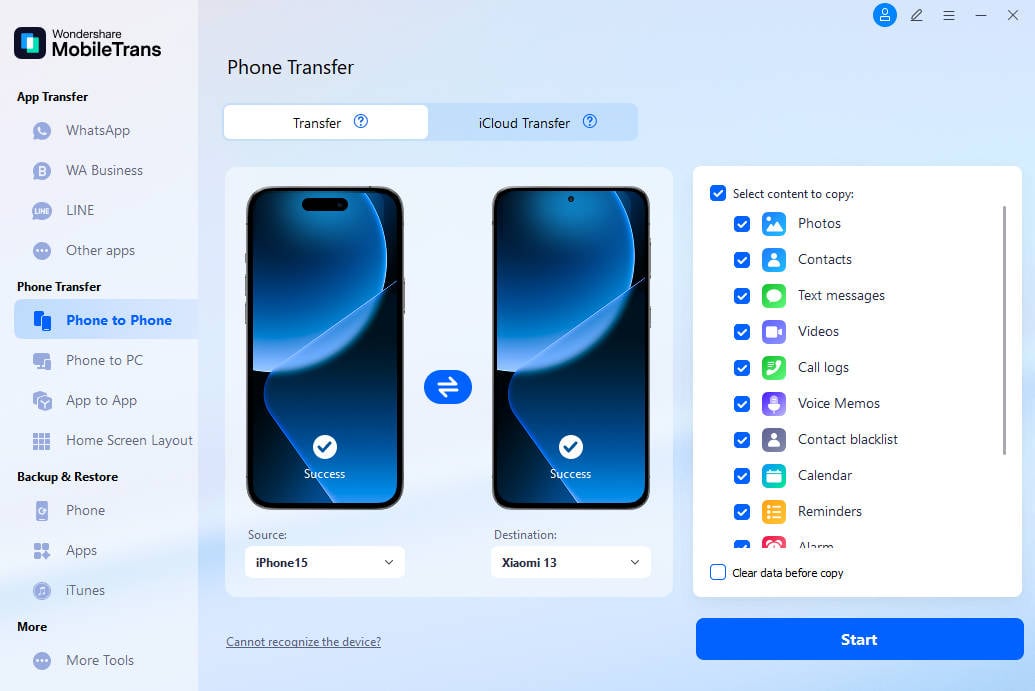
Step 3. Make MobileTrans do the work by clicking “Start.” Avoid disconnecting any device. After completion, you'll receive a confirmation message, and your new Android phone will contain all the desired stuff.

Alternative Methods for Android-to-Android Transfer
Common alternatives, along with their use cases and steps, are listed below.
1. Google Account Sync
Best for: Ideal for contacts, calendars, Gmail, and app data
Sign in with a Google account on both Android devices to automatically sync vital data throughout the transition. This is the most common and convenient method for cloud backup and transfer. Follow the steps below:
Step 1. Open “Settings > Accounts > Google” on your previous Android handset.
Step 2. Turn on Contacts, Calendar, App Data, and Gmail by tapping your account.
Step 3. Use the same Google account to set up your new Android phone.
Step 4. Enable sync under “Settings > Accounts > Google.”
Step 5. Background data synchronization begins automatically.
Step 6. Not all app data is sent unless supported by the app.
2. Bluetooth/Wi-Fi Direct:
Best for: Ideal for small files, such as images, movies, or documents.
Transferring files via Bluetooth or Wi-Fi Direct is a quick and easy way to share files without the need for cables. It's not as fast as other ways, but it's useful for ad-hoc sharing.
Follow the steps below for Bluetooth:
Step 1. Select “Settings > Bluetooth” on both devices to enable Bluetooth.
Step 2. Select devices from the list to pair.
Step 3. Select files from the Gallery, tap “Share,” and choose “Bluetooth” on the transmitting Phone.

Step 4. Accept the transfer on the receiving phone.
Follow the steps below for Wi-Fi Direct:
Step 1. Wi-Fi Direct may be enabled under “Settings > Wi-Fi > Wi-Fi Direct.”
Step 2. Link both devices.
Step 3. Send files directly using Samsung's Smart Share or Google Files.
3. Nearby Share or Android Beam
Best for: Newer Android smartphones for local file transmission.
Google has replaced Android Beam with Nearby Share. It transmits data, links, and apps quickly and offline, utilizing Bluetooth, Wi-Fi, and NFC. Let's see how to enable Nearby Share:
Step 1. Select “Settings > Connected Devices > Connection Preferences > Nearby Share” on both devices.
Image name: how-to-transfer-data-from-android-to-android-03
image alt: open nearby share
Step 2. Please turn it on and adjust the visibility.
Step 3. Select a file, hit “Share,” then pick “Nearby Share” on the sender's phone.
Step 4. The recipient will be prompted to accept the file.
Note: Android 10+ works well (although compatible with Android 6+). Place both devices within a few feet of each other.
4. Cloud services (Google Drive, Dropbox)
Best for: Backups, extensive data, and multi-device sync
Using Google Drive, Dropbox, or OneDrive to sync data between Android devices is easy. Online services save your stuff for easy access on any device.
Google Drive Example: Steps
Step 1. Launch Google Drive on the old device.
Step 2. Tap “+ > Upload” and select backup files.
Image name: how-to-transfer-data-from-android-to-android-04
image alt: upload backup files
Step 3. Use the same Google Drive account on the new device.
Step 4. Get the files as needed.
Common Issues and Troubleshooting
Here are the most typical issues and solutions:
1. Devices Not Recognized by MobileTrans
Issue: MobileTrans cannot identify one or both Android smartphones after connection.
Fix:
· Use genuine or high-quality USB cables.
· Connect with the Phone unlocked.
· Switch phone USB mode to MTP.
· Try reconnecting after restarting MobileTrans and the devices.
2. USB Debugging Not Enabled
Issue: MobileTrans needs USB debugging to access system info.
Fix:
· On both Android devices, go to Settings > About Phone. Tap “Build Number” 7 times to activate Developer Mode.
· Settings > Developer Options > Enable USB Debugging.
· Reconnect devices to continue.
3. Transfer Interrupted or Stuck
Issue: The transfer process freezes or fails midway.
Fix:
· Avoid using phones during transfers.
· Avoid disconnecting USB wires.
· Charge both phones to over 50%.
· Try restarting the transfer and installing the newest MobileTrans.
4. Incompatible Android Versions
Issue: MobileTrans may not support old or new Android OS versions.
Fix:
· Check MobileTrans support for compatibility updates.
· Both smartphones should be on Android 5.0 or later for maximum performance.
· With these basic troubleshooting methods, transferring data between Android devices will be a straightforward process.
Final Tips for a Smooth Android-to-Android Transfer
Below are some final and common tips for a smooth and easy Android-to-Android transfer:
1. Fully Charge Both Devices
A reliable power source is essential. Start the transmission with both phones at least 70% charged. A power outage during a transmission might damage data.
2. Backup Your Old Android Device
Back up your previous device before transferring any data. You can back up to Google Drive, SD card, or MobileTrans Backup. You have a backup plan if something goes wrong.
3. Use the Latest Version of MobileTrans
Use the Wondershare website to get the newest MobileTrans. Android updates repair faults and make them compatible with newer devices and OSes.
4. Avoid Phone Use During Transfer
Avoid using either Phone while MobileTrans transfers data. Phone calls, texts, and apps might impede or disturb the procedure. Let the software work uninterrupted.
Conclusion
Switching to a new Android phone is a fast and easy process. You can switch confidently with our thorough phone-to-phone transfer instructions, ensuring no cloud sync or data loss. Google Sync and Bluetooth are suitable for basic needs, but MobileTrans is faster, more compatible, and easier to use. Before you start on your new Android smartphone, follow our guidelines, prepare your devices, and let MobileTrans do the work.

