





Looking for an app that's not available in the Play Store? Sometimes you might be beta testing an application or you're trying to get another app store installed, like Amazon's store or the Epic Games store. Fortunately, Android is very open by nature, and getting these apps installed won't take you very long. We'll walk you through how to install APK files on your Android phone in just a few steps.
Keep in mind that installing apps from strange places on the internet can be dangerous, though. Major things like the aforementioned app stores are generally okay, but make sure to do some research before accidentally loading malware onto your device.
Download the APK
To install an APK, you need the APK. Depending on what you're looking for, there are a few ways you might get one of these files; Amazon and Epic have links posted on their website for easy access, although anyone can host an APK just like any other file. You can also grab APK files from the Play Store with one of our other guides, if you're needing an APK from a more direct, official source.

If you're just testing this out, you'll probably want to stick with something like the Amazon app store or the Epic Games store. These are safe and verified from major companies, so you won't need to do much extra research to guarantee it isn't malware.
Install unknown apps in settings
By default, most modern Android phones are going to block installations of apps from unknown sources. This is a very sensible security measure, since you don't want your PDF reader automatically installing strange apps. For our guide, though, we're going to need to turn this off for at least one application.
In the settings menu of your phone, you should find a security entry that will list an “Install unknown apps” entry. Tapping this will take you to a screen that shows every app on your phone that is allowed (and not allowed) to install unknown applications.

Depending on how you'd like to install these APK files, you'll want to turn this setting on for either your web browser where you downloaded the app, or your files manager. Allowing your browser (like Chrome or Edge) to install unknown apps means you can install those APK files directly from your downloads menu, immediately aftering downloading the file. That's the most convenient option, although it could make it too simple to install an accidentally-downloaded APK file that shouldn't be on your phone.
Alternatively, allowing your file manager to install apps will let you navigate to your APK collection on your phone and install apps from there. This step might differ a bit depending on your phone, but a majority of file managers pre-installed on phones have a quick link to your downloads folder where the APK files should be. Samsung's file browser even has a shortcut that shows all installable APKs on your device in one convenient place.
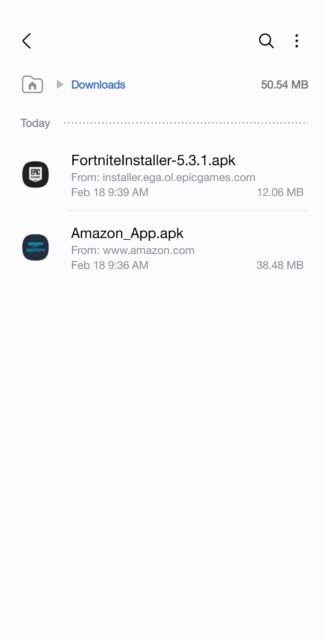
Whichever route you choose, find your APK file, tap it, then confirm the installation. The app should install itself in a few seconds, and you'll see it pop up right in your app drawer and ready to go. You might have to repeat this process if those apps have updates down the line, since they aren't updating via Google Play, but once you get everything set up the first time it should be pretty quick to repeat it.
Happy installing!



Really helpful and clearly explained guide 👍 I often point new users to simple install steps like this when they’re setting up entertainment or live sport apps.