


Android 5.0 Lollipop has a very cool new feature that will make it so much easier to setup a new phone or tablet. You can now restore all or some of the apps from a particular device. No more will you have to type and search for every app that you want to download and install because Google will automatically download and install all the apps that were installed on your older phone or tablet.
In this guide, I will walk you through how it all works. I have also included a hands on video at the bottom to give you a better idea.
A couple of caveats though. The first is that actual app data (such as game progress or settings) will not transfer over so you will still need to restore backup data manually and/or sign in to accounts. Also, your home screens on your new device won't get configured exactly the same as your old device. In my experience, only a few of the apps were actually placed on the home screens, and no widgets. Any proprietary apps that are tied to certain manufacturer's phones will not get downloaded. That also holds for any apps that simply aren't compatible with your new device. Lastly, if you have performed a factory reset of your phone or tablet and starting from scratch as in not really moving to a new device, you might not be able to restore the apps that were on the device before the factory reset. Most of the time, the device that was factory reset didn't show up in the device list, but it did appear one time for me.
With all that said, this new feature is so convenient, you're going to love it. There are two ways in which to initiate the process and it all happens during the initial setup of your Android phone or tablet.
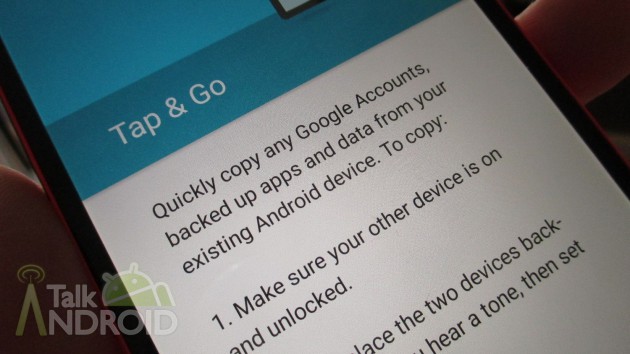
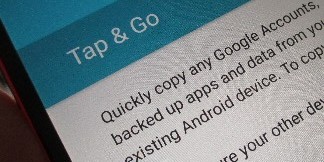
If you have the old device handy and it has NFC (as well as your new device), you can simply select the first option, which is Tap & Go. Just make sure both devices are turned on and unlocked. Hold them together back-to-back and you will hear a tone which will begin the process. The two devices will connect via Bluetooth and the information from the old device will get transferred to the new device once you verify your Gmail password. Your new device will proceed to download every app that was on the older device.
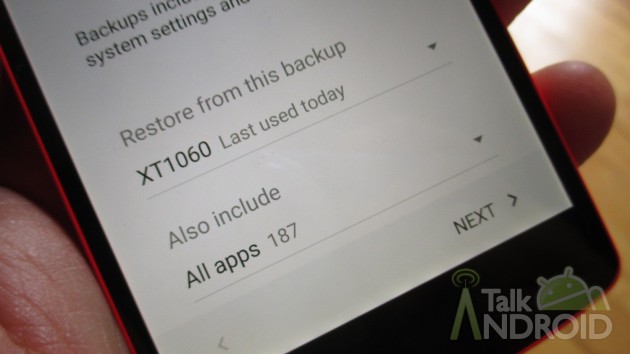
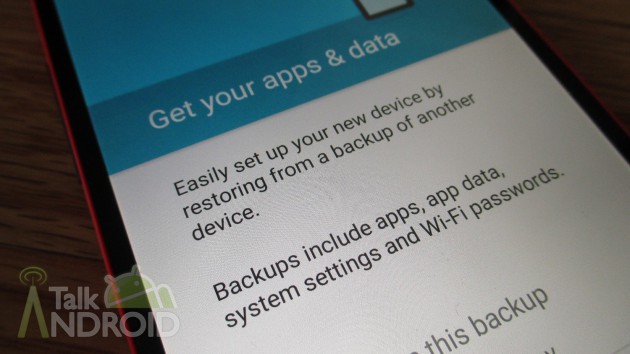
You can opt to skip the NFC method and select from any devices that are currently backed up on Google's servers. This is actually the better option in that you will have the ability to select which apps you actually want installed on your new device. All you need to do is enter your Gmail address and password to get the ball rolling. You will then be able to choose which device you want to restore from. One caveat is your older device needs to be set to back up to Google's servers. You can find that under Settings > Backup and Reset. Just make sure “Back up my data” is checked or switched to on.
As I said, depending on the scenario between devices, the setup of your home screens from your old device will either get partially transferred or not at all to your new device. For example, if you're new device has the Google Now launcher, but your old one doesn't, you won't see anything on your new device's home screens after the restore process has finished. If both devices have the Google Now Launcher, Google will place some of them correctly. I have yet to see an example of a full restore, but that could happen if both devices are running Lollipop (I didn't test), but the bottom line is that you just saved a lot of time trying to figure out all the apps that you needed to download. Your home screens probably need a new look anyway.
I put together a video showing you how it all works below.

I hope this guide helped. If you have any issues or I missed something, please let us know in the comments. Also, be sure to check out our other Android Lollipop guides here

How to transfer apps from android to android ? To solve this problem, a tool Samsung Transfer becomes needy .Samsung Transfer is a highly recommend transferring tool that enables you to transfer apps between Android in simple steps.
The second option (non-NFC transfer) was not available on my ASUS Andriod 5.0 device. ASUS has its own transfer program which is not as flexible
I understand the principles fine, but have a problem. About a month ago I replaced my Android phone with a new S6. Now I bought a Samsung Tab S2 tablet. In the setup, it only offers me the choice to restore from the OLD phone. I made a lot of changes, tidied up many apps etc when I got the new phone, so don’t want to do all that again on the tablet. The new phone has the backup and restore options checked, the google account is syncing every day, and the device is visible to Google on my PC – I don’t know what else I can do or check. The S6 is running Lollipop and I was told that the tablet should be the same and therefore totally compatible. (The old S3 is running Kit Kat).
Important: if you do an initial startup of your phone, and skip adding your Google account, you will not be asked later if you want to restore from a previous backup. You’ll have to do a factory reset, and enter your Google account during the setup, and then it will ask if you want to restore.
Anyone knows how to restore from previous backup AFTER the initial startup of the phone without factory reset?
As far as I can tell you need to do a factory reset to get this option. I hunted for a while to find another way, but it proved fruitless.
I’d be very happy to be corrected though!
The other MAJOR problem for me is that it appears to not find backups if the ‘new’ device has a slightly older android version (my old phone had got marshmallow, but the new phone arrived with lollipop, and despite letting my try NFC and ‘choose a device’, failed to find a backup from the marshmallow phone. Forum here seems to admit this problem… https://productforums.google.com/forum/#!topic/nexus/cy6DoHSbDmA
I think my only option now is to skip the backup-restore. Wait for new phone to get marshmallow (or do a sideload… sigh), then factory reset and try again. Big sighs…
thank you for your article it was quite informative, my problem is this I have been using a samsung galaxy mega for the last two and a half years on a trip last week my screen was damaged and now I have not the ability of touch on the screen so i went to my carrier and I bought a new LG spiral and I would like to transfer my apps over to my new LG is there a way that I can do that without the ability of my touch screen on my samsung I am not computer savvy phone savvy and my carrier doesn’t seem to have any answers for me either my carrier is MetroPCS by the way if you can help me I would greatly appreciate it you can contact me honeyhendricks88@gmail.com.I have attached two pictures of my samsung galaxy mega so you can see the damage etc any help you can offer would be great thanks so much
Thanks for this article. Clear instructions for when I get my new Nexus 6 :)
Yes! Can’t wait till 5.0 is released! Until then I am content with 4.4.4 on my Note 4 lol