



It can be hard to keep track of all the things that the Galaxy S 5 can do. There are so many obvious ones, but here are 10 things you might not know your Galaxy S 5 can do, as provided by Samsung.
1. Write on your Galaxy S 5 with a pencil
You can increase the sensitivity of the Galaxy S 5's display by heading into Settings/Display and tapping on “Increase touch sensitivity.” Now you will be able to tap, swipe, or write on the display using a pencil. You can even use a gloved hand or your fingernail. Quick tip: You can also access Touch Sensitivity from within the 22 quick menu icons. Just pull down the status bar using two fingers to see your quick menu icons and toggle “Touch Sensitivity.”

2. Find similar music tracks by tilting your Galaxy S 5
While listening to the stock music player, put your GS5 into landscape mode. You will then see suggestions for similar tracks stored on your phone. Obviously, the more songs you have on your device, the more recommendations you will get.

3. Use Toolbox to bookmark your favorite apps
The Toolbox is just a glorified folder of your favorite apps, but it's actually a floating widget. To place it on your screen, just swipe down the notification panel with two fingers and tap “Toolbox.” You will see a white circle shaped icon with three dots appear on your current home screen. You can tap and hold to move it wherever you want, but it will be visible from all your home screens and whatever apps you run (excluding the camera).
Just tap on the circle to see your favorite apps. To customize what apps appear in it, tap and hold, then drag it to the top left “Edit” button. You can then check what apps you want to appear in it. If you want to remove it altogether, just tap and hold, then drag it to the “Remove” button at the top right.

4. Protect things with Privacy Mode
Need to hide certain pictures, documents, text messages, videos, voicemails, etc. from prying eyes? Samsung has you covered with Privacy Mode. Assuming you never used Privacy Mode, open your Settings and scroll down to Personalization. Select “Private Mode.” You will then be given the opportunity to select what type of security (Pattern, PIN, Fingerprint, or Password) you want to use to make your private files visible.
Now you can move files to private by hitting the menu key, and selecting “Move to Private.” Note: for photos, this has to be done in thumbnail view. Once you have selected all your files to be private, go back to Settings/Personalization/Privacy Mode and turn it off. Now those files won't be visible to anyone. If you want to see them again, go back to Private Mode and turn it on. You will of course, need to enter your PIN, password, pattern, or fingerprint to turn it on.
5. Kids Mode
If you have children, no doubt they will play with your phone from time to time. The Galaxy S 5 features a new Kids Mode that is fun and safe for all children. To get started, long press on any of your home screens, select Widgets, and find “Kids Mode.” Long press on it and place it anywhere on your home screen. Now tap on it, and it will install the application (63.1 MB).
Now open the app and set your PIN code followed by your child's name and what apps you want to be a part of it. Installing new apps creates a gift box so you can “give your child a gift” by installing apps they wanted. If you're looking for new kid-friendly apps, you can go to “Parental Control” at the bottom right of your screen, then tap the Menu at the upper left, followed by “Kids Store” to find more apps.
Limiting your child's play is also pretty easy. Just tap “Parental Control,” followed by the Menu, then “Daily playtime limit” to set the daily time limit.

6. Open the Camera app from the lock screen
Head into Settings and scroll down to Sound and Display. Select “Lock Screen” and then check “Camera Shortcut.” A camera icon will now appear at the bottom right of your Lock Screen. Just swipe it up to open the Camera app so you can grab that picture quickly. It will even bypass your security, but as soon as you leave the Camera application, you will need to enter your credentials or fingerprint in order to proceed.
7. Try these new camera features
Virtual Tour Mode
Want to give someone a virtual tour of a restaurant, your house, or any other location? Virtual Shot will do just that. Just follow the guided arrows that point forward, left, or right. You will then get a moving picture like a gif image.

Shot and More
With Shot and More you can edit pictures and apply various effects immediately after taking your shots. You will be able to choose the best photo from a set of burst shots, best face, drama shot, eraser, and more.

8. Set Priority Senders in the Messaging app
You may have 1,000 contacts on your phone, but I bet you regularly text only a handful of them right? Well that is where Priority Senders comes in. Just open the Messaging app and select “Add Priority Senders.” You can add your favorite contacts, and they will be displayed along the top for easy access. Just tap on any one of the contact icons for sending and reading messages.

9. Get caller information while you are still on the phone.
Need to get caller information while you are in the middle of a call. To turn this feature on, head into your Settings, and scroll down to Applications. Select “Call,” then check “Show caller information.”

10. Enable Call Notification Pop-Ups
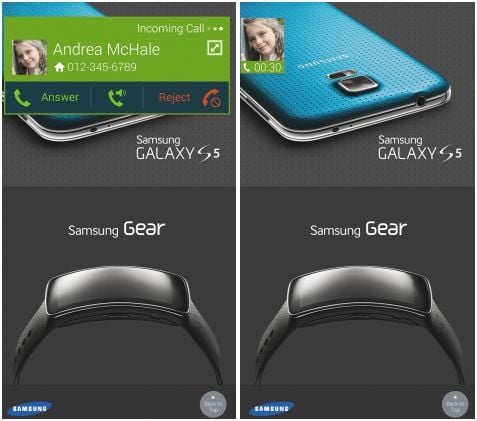
Do you find it annoying that when you receive a call, whatever application you were using is stopped for the incoming call screen? With the Galaxy S 5, you can enable Call Notification Pop-Ups, which will still allow you to finish that email if you don't want to answer the call.
Go to Settings, then scroll down to Applications. Select “Call” and make sure to select “Call notification pop-ups.” From now on when a call comes in, you will get a much smaller pop-up over your currently opened app.
source: Samsung Tomorrow

I have galaxy s5, how to set up my text to have the time stamp next to all of the messages for proof, why doesn’t my time stamp show?
Seems like this is not a site to get answers to questions. Duhhhh
How do you set the Galaxie S5 so it doesn’t track everywhere yhou have been.
all this is kind of old kind of basic info but thanks anyway
What does the number 2 mean at the top of the screen between the WiFi symbol and the signal symbol ?
Help! My friend trying to move stuff from device storage to sd card lost my avatars. My granddaughter thinks of the little bird as mrs. Birdie & in her mind Mrs birdy is synonymous with me, her Nana. when I told her Mrs birdy was all gone she started crying because it’s like part of me is gone. I need to get them back please help. she’s only 5, I hate to see her cry, she lives five hundred miles away.
Is there a way to move the send button in the message screen on Galaxy 5. I keep hitting it by accident.
Gary
My boyfriend and have galaxy 5 phones I think he is cheating how do I check his deleted text without him knowing
You have to go onto the plan as in your sprint at&t Verizon and so forth hope this helps and i hope he isnt cheating
James, when I go onto my phone carrier, where do I need to go to find out if he is cheating without him knowing?
if you think he, then he probably is.. I can tell you that much with out checking his texts. once messages are deleted there gone there is no recovery.
Or she’s just paranoid.
I have Sg5, I got a new scard, then moved pics from device to card storage.Then deleted pics from device and it erased them all from card too!How do I get them back?I dont have a computer.
After putting photos into private mode, they are still viewable in the “Photos” app. How can that be changed?
Can anyone tell me if it is possible on the S5 to assign a music track to a single caller ? I mean if I want to know whos calling by music rather than have to look each time the phone rings .
Yes. You can assign that in your Contacts
while my message screen is open, my notification does not ring for a new text. it seems practical but really it sucks, hard to multitask and carry on a text conversation. is there a way to disable this feature, or make my notification ring for every incoming text even when the message screen is open? and please don’t tell me to just lock my phone after every text. thanks
Anyone know how to shut off the suggested music tracks when I start a song (other than not being in landscape)? I’m not interested in suggestions…Thanks
Is there any way to take the call button off the messaging screen? I keep butt dialing because I’m always in my text screen
Lock your phone when you send a text…?
Is there any way to send text messages to favorite contacts directly from “favorite”menu. I used to tap on a favorite contact to start a call and immediately end it and select the messages from call summry window. It’s really annoying and i dont like my recent call history to be messed up with this. They could have introduced a option like long press to send an messages instead. Pls let me know in this regards. Also my contacts are in list view while favorite contacts are in grid view. Is there any option to change it.
Swipe to the left or right in your recent calls and it will give you the option to call or text same goes for when you are i messaging
Does anyone know how to send part of the contact into to someone else in a text message on a galaxy 5…ie I want to send someone a person’s work number not the cell number
Open the contact, select the three vertical dots on the top right…select send contact information, which will allow you to select the information you want to send as a text in a message.
can i stop the whole text message appearing on my screen when i receive one
send me a email about this please…
Can you extend more time on the dual camera mode?
BikerDdton@live.com
Can I hide the priority sender box? I don’t use it and it’s annoying to have it taking up space at the top of my messages.
In messages go to settings and unchecked priority sender box.
learned something new in here which differs from some other guidelines! :)
This was so helpful! Is there a way to put work emails in the private folder?
Thank u
10 hreat reasons why this phone will be number #1 in 2014.