



Newer mobile devices provide more convenience and flexibility, but many people find it extremely frustrating to edit PDF documents on their mobile devices. Sometimes, it takes the skills of a professional puzzle solver to do simple text edits. Users ultimately get frustrated, when in Android, the native apps to edit PDF documents don’t allow for uneditable text fields. Worse still, sometimes the apps crash when attempting to load larger PDF files.
Analyzing the components and structure of a PDF file may require a deep and in-depth analysis. This is often beyond the capabilities of mobile devices. Also, several mobile apps lack annotation tools and true text editing tools. This paper reviews the existing tools that enable people to edit PDF files on their mobile devices. This work presents techniques about how to edit PDF files on Android devices while preserving the original content, quality, and fidelity of the PDF files.
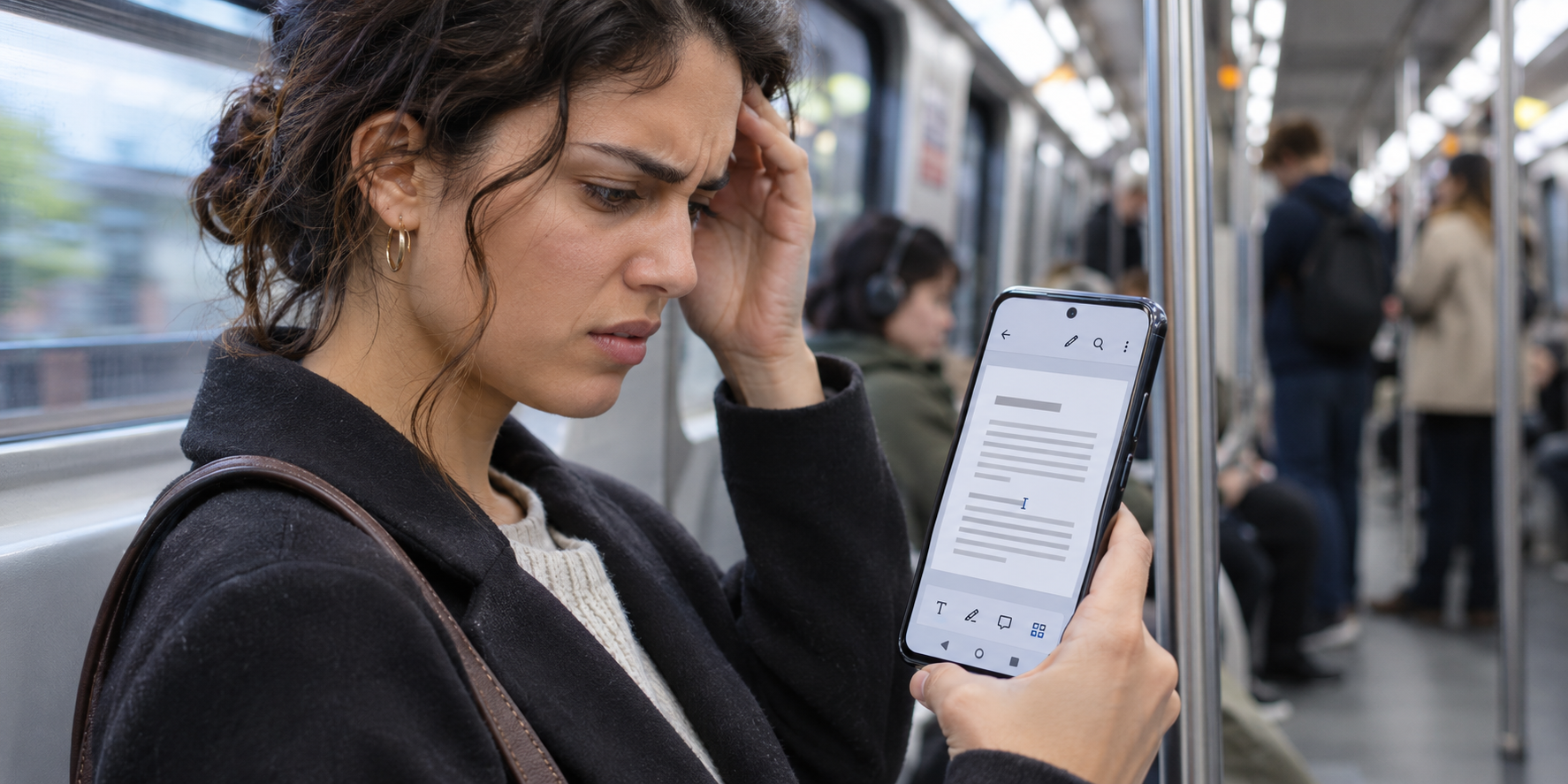
Why Standard Tools Struggle to Edit PDF on Android
There are three major constraints users encounter when trying to edit PDF files on Android.
First, the ability to edit PDF files natively is often not an option. With popular PDF reading apps (including the mobile version of Adobe Acrobat), users can add new text boxes and annotations. However, the ability to edit existing text is not an option and thus, the only option is to pay for the premium version of the app to edit text.
Second, “annotation illusion” leads to layout destruction. Many free apps allow users to add a text box to cover the original text. However, on Android, this does not edit the PDF content; it, rather, adds a new layer to the PDF. When printed or opened on a different device, text boxes are unbound, resulting in overlapping characters and a destroyed document.
Finally, fragile mobile processing impacts formatting and font matching. While apps allow users to adjust the format of a PDF, they fail to find the original fonts, resulting in a damaged and corrupted file.
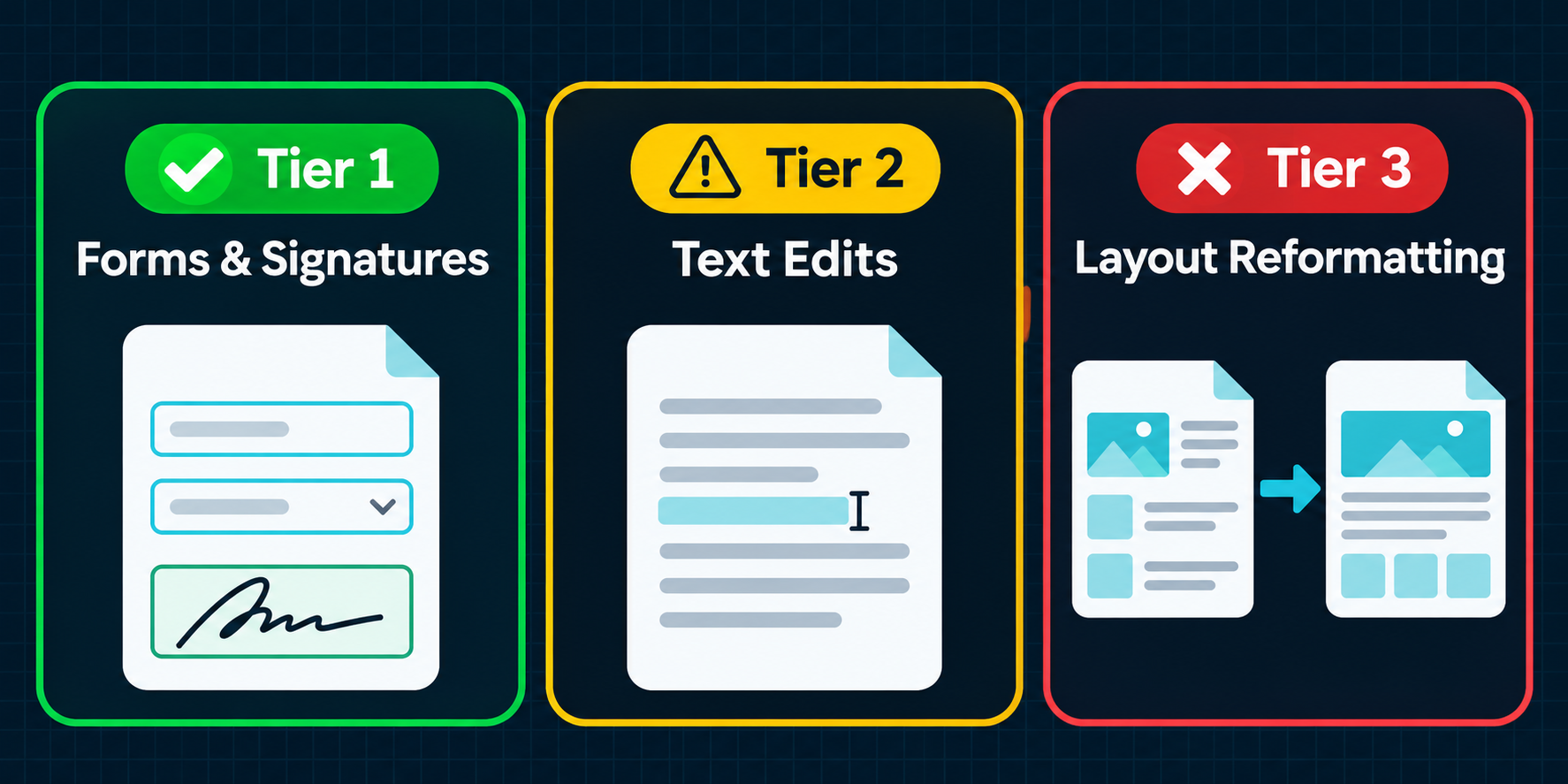
The Triage Framework: Can You Edit PDF on Android?
Prior to downloading a new app, users have to classify the type of editing they want to do. Not all types of editing can be done on mobile.
Tier 1: Types of Editing that Can Reliably be Done on Android Devices
- Filling standard forms: Entering information into interactive AcroForms.
- Signing documents: Using hand or image signatures.
- Annotating: Underlining or adding comments or other editing to the text.
- Page organization: Rotating, deleting, or reordering pages.
Tier 2: Tasks Possible but With Caution
- Correcting typos: Editing or deleting existing text is possible, but because the edit field is small, it's difficult to edit or remove text precisely.
- Replacing images: Replacing an image is possible, but if the new image is larger than the old, it may overlap text.
Tier 3: Best Left for Desktop Use
- Reformatting layouts: Adjusting or reflowing paragraphs and more complex tables to better use available space.
- Handling heavy files: Larger files (over 50MB) increase the likelihood of a crash when trying to use the mobile app.
- Certificate-based signatures: There are no mobile apps that provide for the cryptographic verifications associated with digital signatures.
A Reliable Workflow to Edit PDF Android Files
For tasks in Tiers 1 and 2, it's best to use a reliable app and skip the entire text below. The purpose of editing PDF files in Android is to open the file, change what needs to be changed, and export the file, all while keeping the file's layout.
A solution like UPDF addresses these issues on a mobile device. Other readers only let you annotate files. UPDF lets you modify text and images on your Android device. You can select a paragraph and edit it the same way you would a word document. You can replace an image, and change its size and alignment. UPDF processes the files on your device, so your files won't be uploaded to another server. It also offers other features like rotating pages, deleting pages, duplicating pages, and filling out PDF forms.
For a complete walkthrough and to learn how to modify text and images, align and resize them to keep the layout of the page, and to learn how to work with form fields and other features offered by UPDF, visit their website on how to edit PDF on Android.
Evaluating Mobile PDF Editors
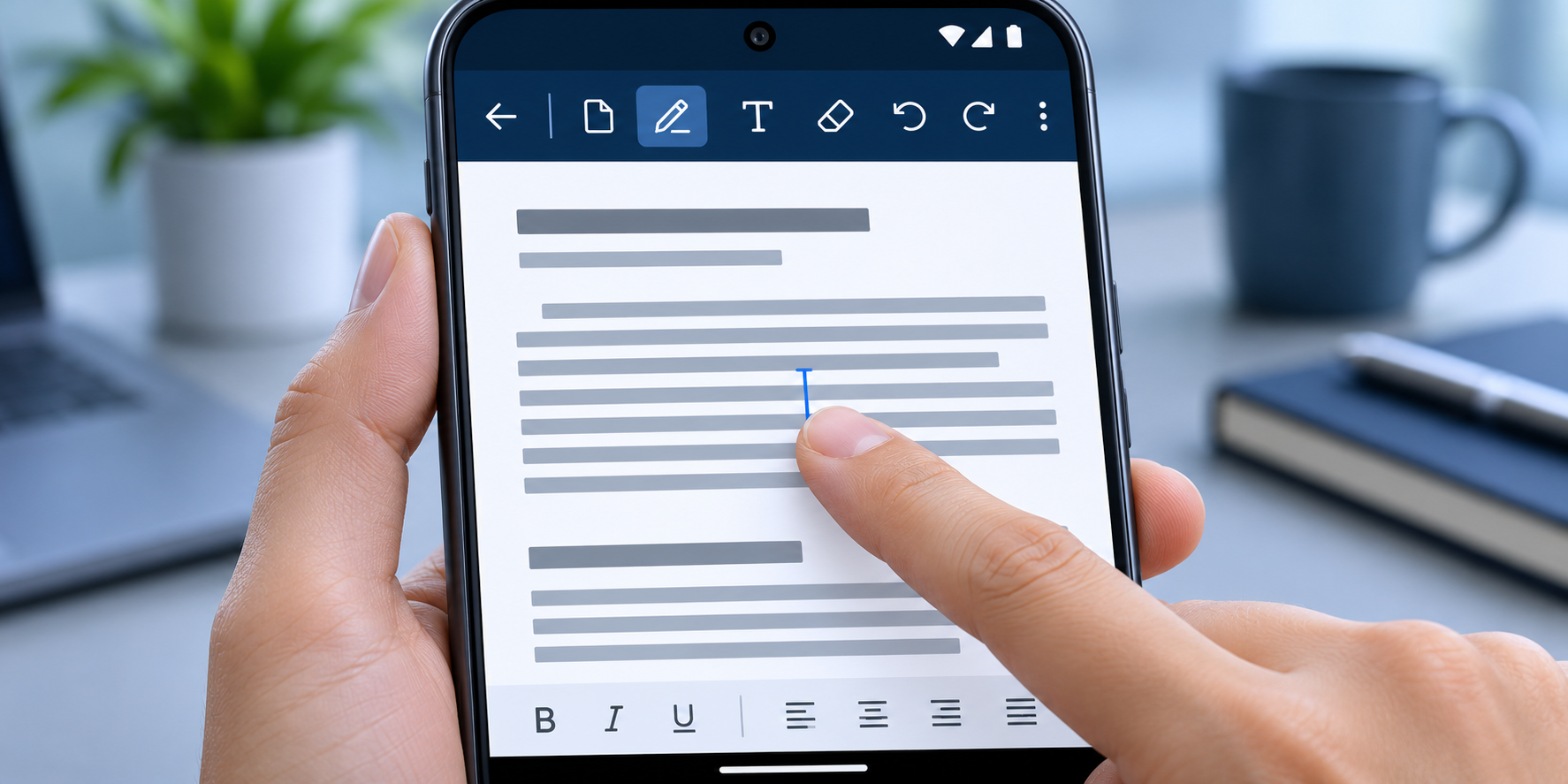
To find the right tool to edit PDF files on your Android device, make sure the tools has the features below.
- True Text Modification: The tool should let you select text and edit it, instead of adding text boxes.
- Layout Integrity: When you change a word or an image, the other elements shouldn't move around.
- No Paywalls for Basics: Basic text editing and page organization should not require a premium upgrade and immediately trigger a paywall.
- Crash Resistance: The app should process moderately large files without crashing and/or corrupting the data.
The Bottom Line
Knowing how to edit PDFs on Android means knowing your limitations. From an app's touchscreen limitations, users can prioritize their work. Simple tasks such as signatures or forms can be edited on the go. If you need to edit a file on your Android, you can probably do it on UPDF. More complicated tasks like editing gigantic files or making drastic changes to a design should probably be done on a computer. The best way to work on Android is to know when to work on your Android and when to work on your PC.