



Modern Android smartphones have effectively replaced point-and-shoot cameras for everyday photography. High-resolution cameras, RAW shooting, and 4K video recording make it possible to preserve memorable moments in maximum quality. However, this technological evolution has a downside: the device’s internal storage fills up rapidly. Sooner or later, every user faces the task of transferring data to a computer. The query “transfer photos from android to pc” remains one of the most common in support services, because the right choice of method affects not only the free space on the phone, but also the safety of the personal archive.
There are several approaches to transferring media files, from classic wired connections to cloud services. Each tool has its own features, limitations, and financial considerations.
Wired Connection via USB Cable (MTP)
Historically, the first and simplest way to transfer files remains physically connecting the smartphone to a PC using a USB cable. After connecting the device, select “File Transfer” (MTP – Media Transfer Protocol) in the Android notification shade. The smartphone then appears in Windows File Explorer as an external storage device, where photos are stored in the DCIM/Camera folder.
The advantages of this method include its independence from the internet. It does not require an internet connection or wireless network configuration. It is also free, since the connection to the computer uses the standard cable supplied with the smartphone.
However, there are also some disadvantages:
· No automation. Each transfer requires manually selecting files, copying them, and then deleting the photos from the phone.
· Low speed with large volumes. When transferring thousands of small files, the MTP protocol often freezes or produces connection errors.
· Physical wear. Regularly connecting a cable can quickly wear out the device’s connector.
These issues may seem insignificant at first. But considering the volume of photographic material and the chronic shortage of time, such inconveniences can be, to put it mildly, frustrating.
Cloud Synchronization (Google Photos and Microsoft OneDrive)
Cloud services offer wireless background uploads of photos. When automatic upload is enabled in Google Photos or OneDrive, photos are sent to the provider’s servers immediately after they are created.
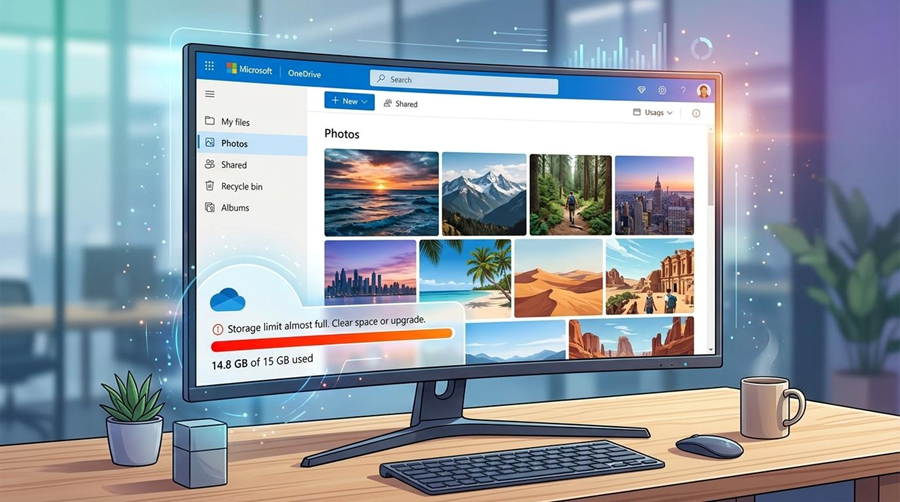
However, the concept of cloud storage has two significant drawbacks: ongoing costs and privacy risks. Google’s free 15 GB limit is shared between Gmail, Drive, and Photos, so with active photography it can be exhausted within a few months. Further storage requires a paid monthly subscription. In addition, uploading personal family archives to third-party servers always carries the risk of data leaks or losing access to the account.
Built-in Quick Transfer Utilities (Quick Share and Phone Link)
Specialized ecosystem tools have been developed for quickly transferring a few photos. Quick Share for Windows allows users to send files over Wi-Fi and Bluetooth in just a few clicks, while the Microsoft Phone Link app synchronizes notifications and provides access to the latest photos on the phone directly from the PC desktop.
These utilities are convenient for immediate tasks, such as when you need to quickly insert a photo into a document on your computer. However, they are not intended for full backups of multi-year media libraries and cannot organize a local archive.
TonfotosSync: Automatic Local Backup Without Cloud Storage or Subscriptions
For users who want to combine the convenience of wireless background synchronization with the reliability and privacy of local storage, the Tonfotos ecosystem and its mobile module, TonfotosSync, provide a solution.
The TonfotosSync mobile app for Android acts as a secure transport hub that transfers new photos and videos from the smartphone directly to a personal computer or network-attached storage (NAS) over a home Wi-Fi network.
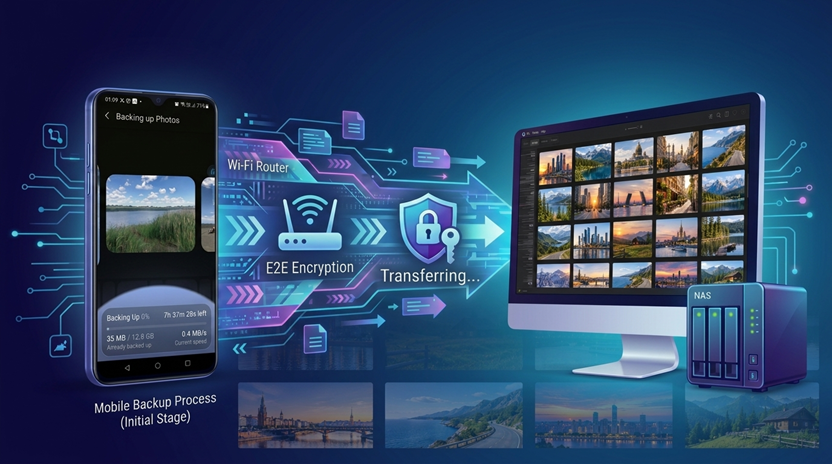
Key advantages of TonfotosSync:
1. Full privacy and data protection. Media files are transferred directly between the device and the PC without being uploaded to third-party cloud servers. End-to-end encryption (E2E) is used within the local network or through a secure tunnel, which completely prevents unauthorized access to the photos.
2. No subscriptions or storage limits. The TonfotosSync app is available free of charge. Users are not limited by cloud storage quotas and do not pay a monthly subscription; the size of the archive is limited only by the capacity of the PC’s hard drive.
3. Smart content filtering. Unlike standard backup tools that can create a mess of miscellaneous files, TonfotosSync can differentiate between types of media. The settings can be configured to copy only photos taken with the device’s camera, automatically excluding technical screenshots, downloaded memes, and image clutter from messengers.
4. Easy setup in 60 seconds. The smartphone is paired with the desktop client by scanning a QR code on the computer screen once. The process does not require entering IP addresses or configuring complex router settings.
5. Synergy with the Tonfotos desktop version. After the files arrive on the PC, the Tonfotos desktop application uses local artificial intelligence algorithms. The program automatically indexes photos, recognizes people’s faces, matches geotags on an interactive map, finds duplicates, and helps build a convenient family archive.
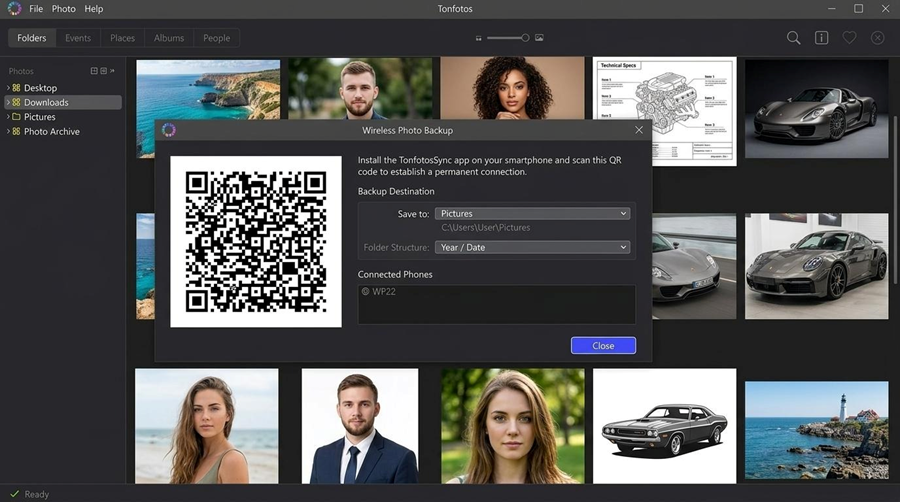
Pro Tip.
To clean your archive of unnecessary files, select the “Sync only the DCIM/Camera folder” option in TonfotosSync settings. This prevents temporary browser images and social media pictures from cluttering the hard drive.
Comparative Analysis of Photo Transfer Methods
To make it easier to choose the optimal solution for regularly transferring media files, we have summarized the main parameters of the methods discussed in the table below. The comparison covers not only convenience and financial considerations, but also important aspects of data privacy and further work with the media library.
| Evaluation criterion | USB cable (MTP) | Google Photos | Phone Link / Quick Share | TonfotosSync + Tonfotos |
| Automation | None (manual import) | Full (automatic cloud upload) | Partial (manual sending) | Full (automatic Wi-Fi) |
| Monthly cost | Free | Paid subscription for >15 GB | Free | Free |
| Data privacy | High (local) | Low (Google servers) | High (local) | Maximum (E2E) |
| Junk filtering | No | No | No | Yes (smart filter) |
| PC cataloging | None | Limited | None | AI face search, map, duplicates |
The results clearly demonstrate that traditional transfer methods force users to make a compromise: either sacrificing time to manual copying or paying more for cloud storage while accepting privacy risks.
Against this background, the TonfotosSync and Tonfotos combination stands out as a balanced ecosystem that provides background automation and intelligent cataloging without recurring costs. This solution allows users to preserve the original quality of their photos, protect their personal privacy from unwanted third-party attention, and turn chaotic folders into a well-organized digital archive.
In any case, the choice of method for transferring photos from Android to PC depends on the specific tasks and your personal preferences.