


1. Make Android Auto Launch Automatically—and Skip the Hassle
Ever find yourself tapping your phone just to start Android Auto every time you get in the car? This is one of the most basic but frequently missed settings. Without auto-launch, you can waste half a minute fiddling around, sometimes while in traffic. To save yourself the distraction, go to Settings > Connected devices > Android Auto and enable the automatic connection. After that, Android Auto starts the moment your phone is connected.
If your car supports wireless Android Auto, it’ll connect automatically with Bluetooth and Wi-Fi as soon as you get in, so your maps and music are ready before you even buckle up.
2. Don’t Overlook “Do Not Disturb”—It Really Can Help You Drive Safer
Notifications from messaging, email, and social apps tempt you to look at your screen more than you should. Android Auto has two modes to tackle this:
Do Not Disturb: This mode cuts all sounds and pop-ups, giving you a totally distraction-free drive. You can switch it on manually at any time.
Driving Mode: This automatically enables Do Not Disturb when your phone connects to your car’s Bluetooth, blocking distractions the moment you hit the road—no need to remember to turn it on yourself.
These settings really help you focus and stay calm behind the wheel.
3. Split-Screen: See Navigation and Music Without Swapping Apps
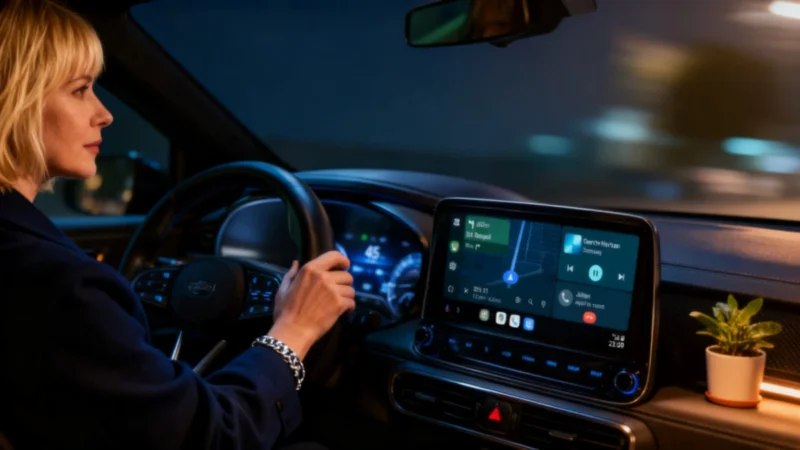
For several years, Android Auto has allowed drivers to display two apps side by side on supported widescreen displays, such as navigation and music. Despite its usefulness, it often goes unused.
To activate split-screen, tap the multi-window icon at the bottom left of the dashboard display. By default, navigation is shown closest to the driver, with your music app on the far side. If you’d rather have your media controls closer, open Settings > Android Auto > Change layout and pick your preference.
Need to focus solely on directions? Hitting the square button in the bottom left switches the map to full-screen, moving all other apps aside until you’re ready.
4. Voice Commands: Gemini Has Improved the Experience
Car voice controls haven’t had the best reputation, but that’s changed since Gemini replaced Google Assistant on Android Auto. Responses are more natural, and you can speak more like you would to a person, asking several things at once.
On Android Auto, Gemini’s replies are intentionally short and direct to limit distraction, with less screen interaction. If you’ve skipped the voice assistant before—maybe because it seemed unhelpful or too wordy—now’s a good time to try again.
5. Day/Night Mode: Protect Your Eyes for Night Driving
Many vehicles don’t automatically switch Android Auto from Day to Night mode, so a bright display can become a nuisance after dark. Night mode reduces glare and improves map visibility when it’s dark.
To force Night mode manually:
Android Auto > Settings > Display > Day/Night mode > Night.
On long drives after sunset, you’ll notice the improvement—especially on the highway when the car’s console is the main thing lighting the cabin.