



If you need to recover photos from formatted SD card, the good news is that formatting does not immediately destroy the original files. In many cases, old data can still be scanned and restored before being overwritten. For a simple and effective solution, Wondershare Recoverit is a practical tool to restore pictures from formatted SD card, including photos, videos, documents, and other lost files.
This situation is especially common for photo-heavy SD cards used in cameras, phones, and travel storage. Acting quickly is critical because once new data is written, your recovery chance decreases.
Why Recovery Is Still Possible
When a card is formatted, the file system usually removes access records instead of wiping all storage blocks immediately. This is why photo SD card recovery tasks are often possible.
Recovery success depends on:
- Type of formatting (quick or full)
- Whether new files were saved afterward
- Card health and age
- Quality of the recovery tool
- How fast you stopped using the card
Why Users Lose Data After Formatting
Most users searching for this term care about family photos, trip pictures, or RAW camera files rather than general file recovery.
Other common causes include:
- Accidental formatting on a camera, phone, or computer
- File system corruption or RAW errors
- Device prompts asking to format before use
- Unsafe ejection during transfer
- Virus or system errors damaging the card structure
What You Should Do First
Before attempting data recovery:
- Stop using the card immediately
- Remove it from the device
- Connect it to a computer using a stable card reader
- Scan with recovery software
- Save restored files to another location
Do not recover files back to the same card, as this may overwrite remaining data.
What a Good Recovery Tool Should Offer
A useful formatted SD card photo recovery tool should:
- Support scanning of formatted SD cards
- Detect photos, videos, documents, and common file formats
- Allow file preview before recovery
- Work with SD, microSD, and other memory cards
- Keep the workflow simple for non-technical users
3 Steps to Recover Files With Recoverit
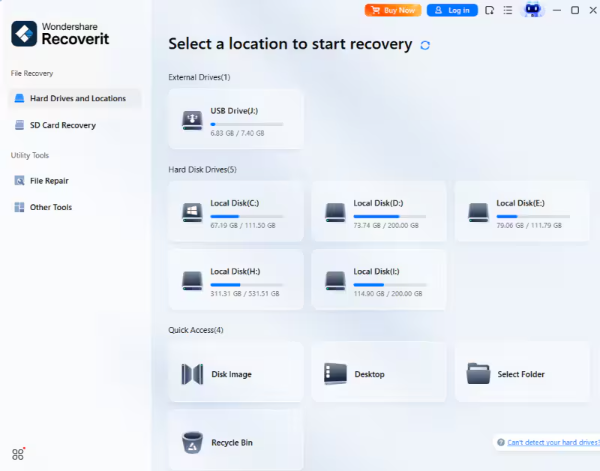
Step 1: Connect the card and select it in Recoverit
- Insert the formatted SD card into your computer and open Recoverit. Select the correct card from the device list.
- Purpose: Identify the storage device
- Action: Prepare the card for scanning
- Result: Recoverit loads the card for analysis
Step 2: Scan the formatted card for lost photos
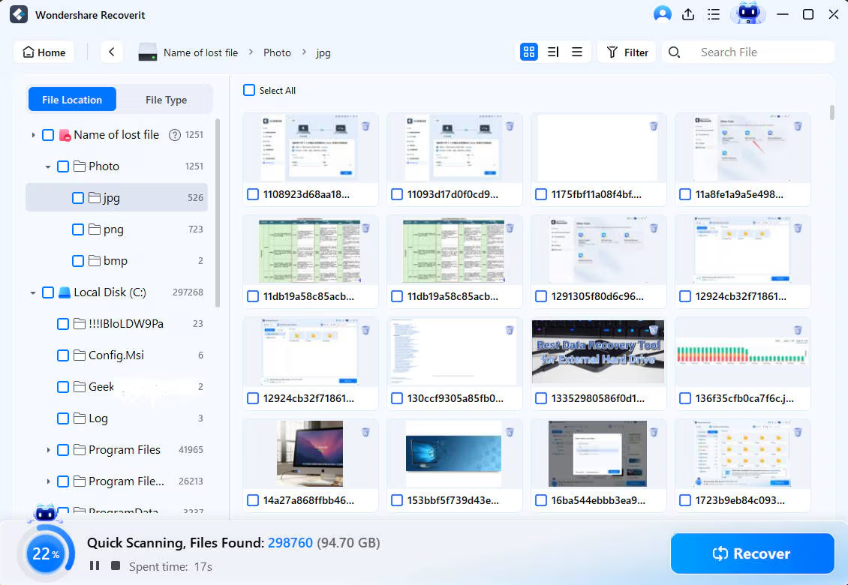
- Run a full scan and let Recoverit detect deleted or inaccessible files.
- Purpose: Identify recoverable images
- Action: Start the scan and wait for results
- Result: Recoverable files are grouped for preview and selection
Step 3: Preview and recover files to a safe drive
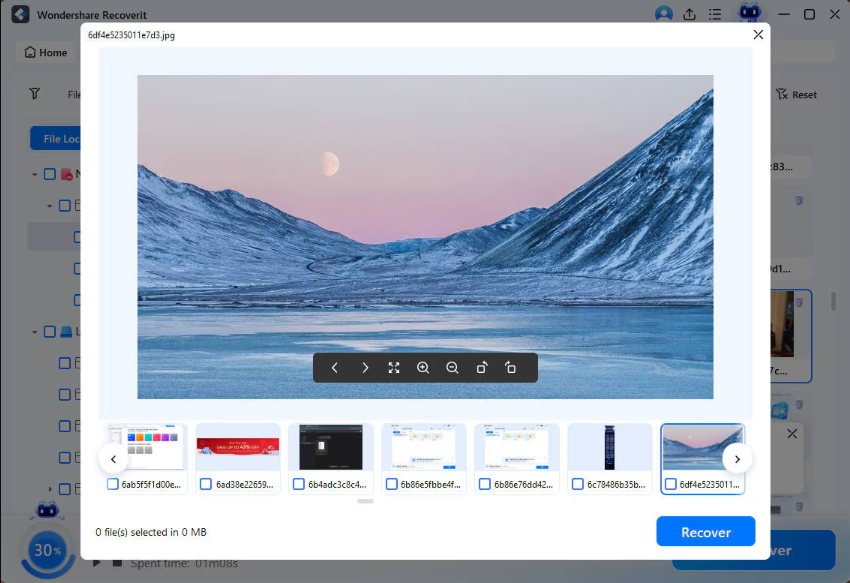
- Preview your photos and recover them to your computer or another external drive.
- Purpose: Restore files without risking overwrite
- Action: Export files to a separate location
- Result: Recovered files are saved safely outside the formatted SD card
Tips to Improve Recovery Success
- Avoid writing new data to the card
- Do not format the card again
- Use a reliable card reader with a stable connection
- Preview files before restoring
- Save recovered files to a different drive
- Start recovery as early as possible
When Recovery May Be Limited
Recovery may fail or be partial if:
- Card has physical damage
- Storage cells are worn out
- Card was heavily reused after formatting
- Original files were overwritten
- Device performed a deep erase
Why Choose Recoverit
Recoverit is ideal for photo recovery SD card because it:
- Supports formatted SD card recovery
- Handles photos, videos, and documents
- Allows preview before recovery
- Provides a beginner-friendly interface
- Works with common removable storage devices
Final Thoughts
If you want to recover photos from formatted SD card, stop using the card immediately and start recovery. In many cases, the data remains until overwritten. Recoverit provides a clear scan-preview-recover workflow to safely restore your photos.
Use Recoverit now to recover photos from your formatted SD card before they are permanently replaced.