

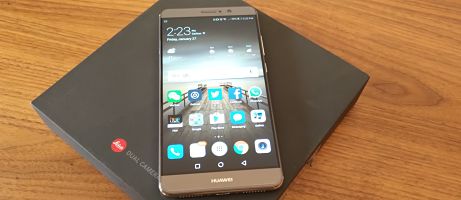


If you own a couple of devices made by different brands, it's quite likely that at least one of them has a different setup for its navigation bar. For example, Samsung sets its navigation keys out as Recents, Home, and Back, while on Google's Pixel the default setting is Back, Home, and Recents. Swapping between devices with different layouts can be frustrating, to say the least. If you are using a Huawei or Honor device with EMUI 5, though, you can choose which layout you prefer, and even add an extra option into the mix.
Join us after the break to find out how to change the layout of your navigation bar in EMUI 5.

The first thing you'll need to do is unlock your device, pull down the notification shade and then select Settings in the top right corner.

Once you see the Settings menu, simply scroll down and tap on Navigation Key.

You can now choose your preferred layout. You'll notice that the first two options merely switch the Back and Recents keys around, while the next options bring a new key into consideration that allows you to open the notification shade without having to swipe down on the display. It can prove handy, although it can take a little while to get used to.
And that's that! With one swipe and 3 taps, you can change the layout of your navigation bar on your Huawei or Honor device running EMUI 5.

Thanks for sharing! I didn’t know about this :)