



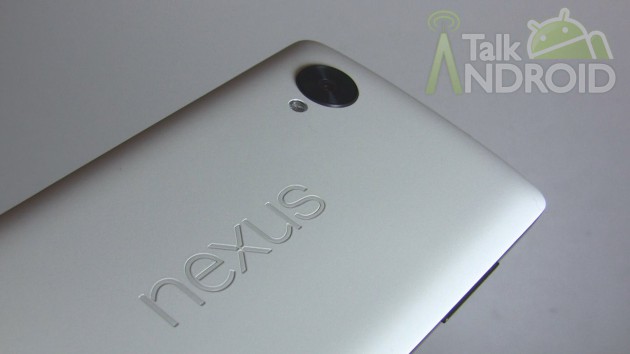
The Android 4.4.1 update for the Nexus 5 started rolling a little quicker than we had originally thought. This update will dramatically improve the camera by making it faster. If you don't feel like waiting for the update, we have the download link for you. If you have flashed a custom recovery you can simply download the update zip file to your device and flash. Assuming you don't have a custom recovery, then hit the break for full instructions.
In order to update, your device needs to be running the latest stock build of Android 4.4 (KRT16M)
You will need the latest version of adb in order to proceed. Just download the latest Android SDK to make sure you’re up to date.
You also need to download the flashable ZIP file for the Nexus 5 (hammerhead) and place it in the fastboot folder (this location should be C:\program files (x86)\android\android-sdk\platform-tools in Windows)
You must have USB debugging enabled on your Nexus 5. If this is the first time going into developer options on your Nexus 5, just go into “About Phone” from your settings and tap the build number about seven times. Hit the back key and you will now see all developer options from now on.
- Power off your Nexus 5, and power back on by pressing the Power and Volume Down buttons together while it boots.
- The fastboot menu should appear and you should see “Start” in the top right. Press Volume Up till it changes to “Recovery.” Press the Power button to select it.
- You will see an Android with a red exclamation point icon, press Volume Up and the Power button at the same time.
- You will get a new menu and you can navigate to “apply update from adb.”
- Now it’s time to connect your Nexus 5 to your computer via a USB cable
- Open the command prompt in Windows (cmd in Windows, regular shell in Linux and Mac) and navigate to the directory that the Zip file is located in.
- Type: adb sideload 7ed504f678cea49ecf0974e8cd956e2974e3f943.signed-hammerhead-KOT49E-from-KRT16M.7ed504f6.zip
- The update will install and reach 100%.
- Your device will still continue to go through a series of steps. Wait until you see, “Install from ADB complete”
- Reboot and enjoy Android 4.4.1

it’s amazing everything that I need in you will be a great experience, thanks
I have installed/activated everything I need, but my command promp keeps saying ‘adb’ is not recognized as an internal or external command
instaleaza google sdk. acuma fac si eu la fel.
NON of this works
You actually need to press the power button first, and while it is held down, press the up volume. (However, holding power too long…many seconds…will reboot phone)
after 3rd step i can’t get a new menu. it starts like usual
Keep trying short presses of the two buttons together – don’t keep them held down for long. Seemed to not register a few presses for me, then suddenly appeared.
Thanks Gary, your comment and Steve’s comment were a great help.
same problem here… short press is the key! thanks