




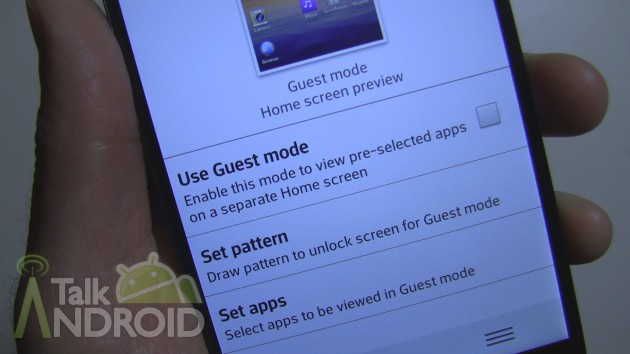
LG added a lot of new features to the LG G2, but one feature that might actually be useful is Guest Mode. It's LG's take on stock Android's multi user accounts for tablets, but LG's version offers only one additional account. Called Guest Mode, it's perfect for those of you that find other family members are constantly grabbing your phone to play a game.
You must be using a security lock screen, but unfortunately it only works with the pattern style. You just need to enable Guest Mode and set a different pattern for it. The best part of it is that you control what apps will be visible for your guests. Whether you only want to allow one app, fifty, or somewhere in between, it's your choice and it's so easy to set up. Hit the break for my hands on video showing you how it's done. Also, be sure to check out all our LG G2 guides.


I forgot mah guest lock pattern.. how to unlock it?plz hlp
keep getting your password wrong until the phone is only able to take the email and security code and once that is done your phone will automatically turn off guest mode
How do i organize the apps onto the next page ?
How do i get the phone out of guest mode ??!!??!!!
On the lock screen swipe to the left , it will say add widgets and swipe it up and put ur code (pin or pattern) and it will unlock ur phone.
Need help, I forgot my guest mode password.. I need to unlock it.. Any suggestions?
To turn off. Just unclik the guest mode, like the upper pict, just wonder , is there anybody can change the guest mode thema or wallpaper ????
How do i turn it off
On the lock screen swipe to the left , it will say swipe to add widgets swipe it up and put ur code (pin or pattern) and it will unlock ur phone.
True, how to change the guest mode wallpaper?
I love guest mode, but how in the hell do I change the Guest Mode wallpaper?
yes how do I change the Guest Mode wallpaper / or thema. thanks