





Samsung recently launched the Galaxy S24 smartphone series, and the Ultra model is the king of Android in our eyes. It uses advanced AI features like no other model, even from other brands, and most people agree that it’s the best phone so far. Before its official launch, over 65% of buyers opted for it in the series. It’s rumored to have amassed 13 million units in sales, beating its predecessors' records by far.
But cutting-edge technology means nothing to the budget consumer who just wants a phone to make calls and take pictures every now and then. If this buyer persona describes you, a flagship may be overkill. Luckily, Samsung isn't all about them. The popular brand gives you options, from the high-end foldable Z series to the cheap F series. We'll help you choose the ideal phone from them in the following guide.
Factors to consider before buying a Samsung phone

Planning stops you from overspending and ending up dissatisfied with your purchase. That said, you should always think about what you expect and need from a phone before racing to the store. Here are examples of things to have in mind beforehand:
Budget
Samsung phones are renowned for being pricey because of how much research and marketing goes into them. In 2022 alone, they spent over $18 billion on research to improve their devices with the latest technologies. Eventually, these expenses increase the phone's price, affecting your buying ability.
But not everyone needs their fancy technology, and advertising may exaggerate phone performances sometimes. That's why you need to think carefully about which phone you want to buy and from what Galaxy Series. Samsung offers a wide range as follows:
- Galaxy Z series: Samsung's most advanced flagship phones, featuring phones that fold into two, such as the Galaxy Z Fold 5 and Galaxy Z Flip 5.
- Galaxy S series: The most expensive non-foldable phones, including the S24 Ultra and S23 Ultra.
- Galaxy A series: Midrange devices with different price points, typically offering good value at lower costs than flagships. For example, the A54, A74, and A23.
- Galaxy M series: Affordable phones focusing on battery efficiency and stable performance. For example, the M54 and M24
- Galaxy F series: Budget phones with basic specifications at the most affordable prices. It is ideal for anyone on a tight budget or not caring for advanced features. E.g., the F14.
Software support

At their core, Samsung phones run the Android Operating System (OS) with the brand's custom One UI overlaying. It comes with its own default apps, or “bloatware,” if you prefer, and even a separate virtual assistant, among other unique features. Both manufacturers release updates, with Google handling major updates and Samsung releasing updates for its custom UI in alignment with the major update.
As of 2022, select Galaxy S, Z, and A series phones plus tablets will receive major OS updates for four years. The S23 and S24 series are among the few that will get them for five and seven years, respectively.
You should check your product information manual or the manufacturer's website or contact the support team to confirm the updated lifespan of the phone you intend to buy. Having this information means you'll dodge getting a phone with outdated software and buying a new one shortly after because it couldn't support the latest OS.
Personal preferences

Personally, I like a phone with an impressive camera setup to test my “photography skills” and capture rare moments. While Samsung phones are top rankers in image quality, autofocus capabilities, and low-light performance, not all offer these excellent capabilities in one. You’ll mostly see a combination of these elements on the flagships.
For example, the Galaxy S23 Ultra offers a deadly quad camera combo on the rear with Space Zoom reaching 100x digital zoom. If you don’t like being up close to objects, it’s a great feature for you. Yet, image quality degrades significantly at that range.
On the other hand, you may want a phone with increased RAM and storage, which is good if you’re a media file hoarder and want your device to run every activity smoothly. That said, you need to define these three things:
- The what: Do you need camera quality, RAM, storage, battery life, display size, or design?
- The why: The reason that makes you want the new phone. Is your current phone broken, outdated, or lacking the features you need?
- The urgency: Do you have an immediate need for a phone upgrade, or are you anticipating future needs?
Knowing your priorities helps narrow down your options and determine if you really need a phone or just itching for a shiny new one.
The best Samsung phones at a glance
- Best Samsung phone: Samsung Galaxy S24 Ultra
- Best durable design: Samsung Galaxy S23 Ultra
- Best phone for multitaskers: Samsung Galaxy Z Fold5
- Best portable phone: Samsung Galaxy Z Flip5
- Best mid-range phone: Samsung Galaxy A54 5G
- Best budget phone: Samsung Galaxy A15 5G
Samsung Galaxy S24 Ultra

Pros
- Strong display and titanium frame.
- Fast and wireless charging support.
- Higher display brightness.
- Seven years of software updates.
Cons
- Expensive. Non-recommendable for budget users.
- No major design changes since the S23 Ultra.
Processor: Qualcomm Snapdragon 8 Gen 3 | Display: 6.8-inch Dynamic AMOLED 2x | RAM: 12GB | Storage size: 256GB, 512GB, 1TB | OS: Android 14 (upgradable up to 2031) | Cameras: 200MP wide, 12MP ultra-wide, 50MP periscope, 10MP telephoto | Battery: 5000mAh | Earphone jack: USB Type-C | Price: $1,299
The Galaxy S24 premiered on January 31 and has stolen the top spot on our list with many cool features. It introduces notable upgrades from the previous S23 series, including a Snapdragon 8 Gen 3 processor and 2572 nits display brightness. If you're upgrading from the previous model, there's not much you'll experience anew besides the AI features and a better camera.
On the S24, you can circle items on your screen to search on the Internet without first opening your browser and using keywords inaccurately. Meanwhile, Live Translate for calls helps you break language barriers via real-time translations, and there are more intelligent features where those came from.
It's a great phone for photographers, offering 200 MP wide and 50M periscope camera sensors that perform well in low-light conditions and capture sharp details.
Longevity is another reason for buying the S24. Samsung has extended its software support to seven years, surpassing the S23's five years. Frankly, it's an attractive deal, considering that the manufacturer releases updates every year. With that much time span, you can expect ongoing enhancements. You'll sleep better knowing that your phone supports every major update to come, and not have to upgrade your device sooner than planned.
Samsung Galaxy S23 Ultra

Pros
- Strong and drop-survivable design.
- IP68 water and dust resistance.
- Less expensive than the S24 Ultra.
- Long OS support.
Cons
- Still pricey and non-recommendable for budgeters.
- The hardware is already a year old.
Processor: Qualcomm Snapdragon 8 Gen 2 | Display: | RAM: 8GB, 12GB | Storage size: 256GB, 512GB, 1TB | Android 13 (upgradable up to 2027) | Cameras: 12MP selfie, 200MP wide, 12 MP ultra-wide, 10MP telephoto (11-degree FOV), 10MP telephoto (36-degree FOV) | Battery: 5000mAh | Earphone jack: USB Type-C | Price: $1,199
The Galaxy S23 Ultra is the next best thing on our list. You should buy it if you want a (slightly) cheaper flagship than the S24. It costs a hundred dollars less, although the price may drop in the future, as it usually happens when fresh options enter the market.
Cost savings aside, the Galaxy S23 Ultra is surprisingly stronger than the S24 Ultra, which recently failed the same drop test both phones were subjected to. From six feet high, it got away with hairline cracks while donned with the Gorilla Glass Victus 2 rear and Armor Aluminum frame. The S24 Ultra was unusable afterward.
Performance is impressive on its custom Snapdragon 8 Gen 2. Samsung partnered with Qualcomm to provide a modified version of the standard Snapdragon 8 processors specifically for this phone. Now, you have a higher clock speed.
The Adreno GPU within it runs at 719 MHz, which easily outshines Apple's A16 Bionic chip. You're sure to have smoother frame rates and graphics quality while playing heavy mobile games.
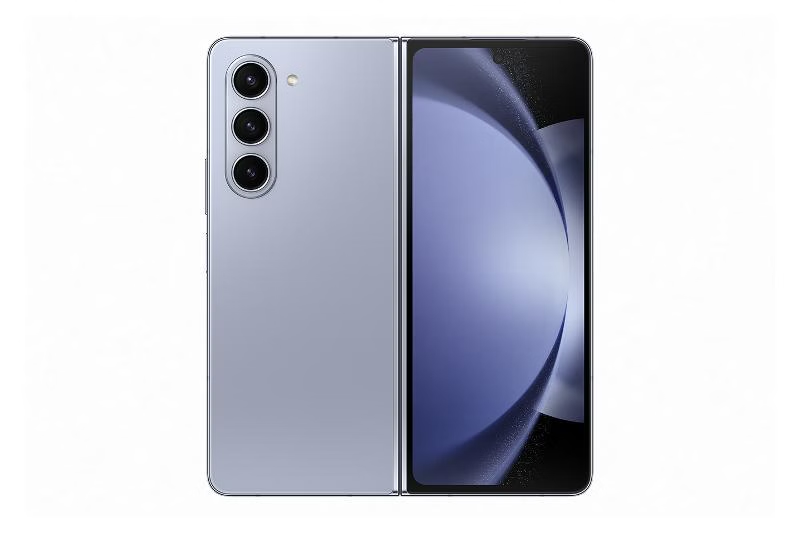
Samsung Galaxy Z Fold 5
Pros
- Expandable design that doubles as a phone and tablet in one.
- High RAM and storage options.
- Versatile camera system.
- Powerful processor.
Cons
- Heavier than traditional smartphones.
- More expensive than the S24 and other flagships.
Processor: Qualcomm Snapdragon 8 Gen 2 | Display: 7.6-inch Dynamic AMOLED 2x | RAM: 12GB | Storage size: 256GB, 512GB, 1TB | OS: Android 13 (upgradable up to 2027) | Cameras: 4MP under-display, 10MP cover, 50MP wide, 10MP optical zoom, 12MP ultra-wide | Battery: 4400| Earphone jack: USB Type-C | Price: $1,599
Argue as anyone may, Samsung is king when it comes to foldable devices. They've been working on them as far back as 2011, when they first teased a flexible OLED display prototype. When 2019 came, they officially launched the first commercially available foldable phone from a major manufacturer, the Galaxy Z Fold.
The Galaxy Z Fold 5 has come a long way from the first foldable. As you may have guessed, the major selling point remains the expansive foldable display. When unfolded, it reaches up to 7.6 inches to provide a tablet-like experience suitable for multitasking, gaming, watching videos, drawing, or reading ebooks — or all at once when you figure out how to use a split screen view. If you want a normal smartphone, there's a 6.2-inch HD+ 120Hz AMOLED screen on the front.
But with that much screen size, portability might be an issue if you want a phone you can easily slide into your pocket. At 253 grams, it's heavier than traditional touchscreen phones, and you will notice the weight while holding it in your hands.
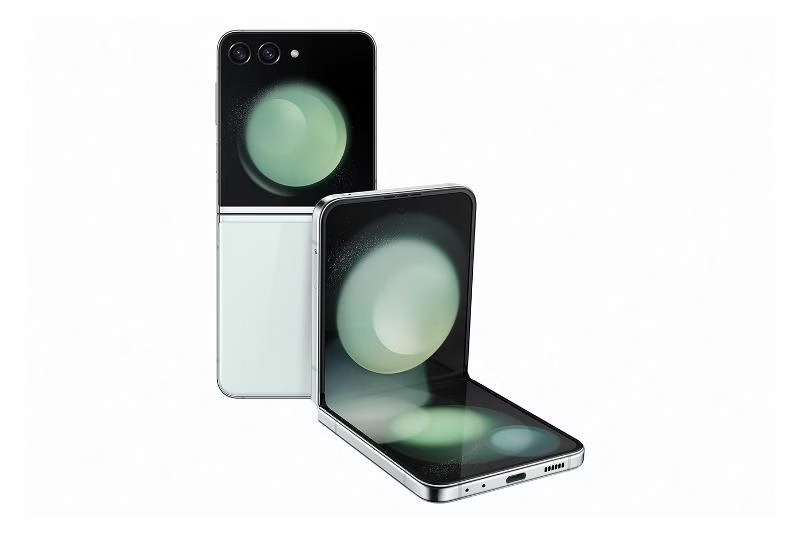
Samsung Galaxy Z Flip 5
Pros
- Compact and pocketable design.
- The cover screen lets you do more without unfolding the device.
- Fast charging support.
- Long OS support.
Cons
- Small battery life.
- Visible crease in the middle.
Processor: Qualcomm Snapdragon 8 Gen 2 | Display: 6.7-inch Dynamic AMOLED 2x | RAM: 8GB | Storage size: 256GB, 512GB | OS: Android 13 (upgradable up to 2027) | Cameras: 10MP selfie, 12MP wide, 12MP ultra-wide | Battery: 3700mAh | Earphone jack: USB Type-C | Price: $1,119
The Z Flip5 invokes a sense of nostalgia, taking you back to the days of classic phone models like the Samsung SGH-T100. It has a snap closure design with an almost invisible hinge. However, it might take a while to get used to the noticeable crease in the middle.
Unlike the Z Fold 5, which expands to give you double a device, the Flip5 works the other way around. Here, you have a 6.7-inch display phone that can fold in half and is pocketable. On the cover is a 3.4-inch screen where you can quickly view notifications and the time, control music playback, manage calls, and access quick settings.
The battery life is noticeably low at 3700mAh, which is understandable given the phone's architecture. It's hard to fit a bigger battery in such a compact design. If you're constantly on your phone, you shouldn't expect a full day's use. Also, you'll want to use battery-saving best practices to keep your phone alive longer, like lowering your screen brightness.
Samsung Galaxy A54 5G

Pros
- Decent battery life.
- Affordable pricing.
- Expandable storage.
- 5G connectivity.
Cons
- Plastic build.
- No wireless charging.
Processor: Samsung Exynos 1380 | Display: 6.4-inch super AMOLED | RAM: 6GB, 8GB | Storage size: 128GB, 256GB | OS: Android 13 (upgradable up to 2027) | Cameras: 32MP front, 12MP ultra-wide, 50MP main camera, 5MP macro | Battery: 5000mAh | Earphone jack: USB Type-C | Price: $449
Flagships bring immensely captivating features, but not everyone can afford them. If you want a Samsung phone that performs close enough with a smaller price tag, you'll enjoy the Galaxy A54 5G.
In terms of performance, it uses Samsung's own Exynos 1380 processor. It's not the best chip on the market, but it runs moderately alongside 8GB RAM. The 6.4-inch display has a 120Hz refresh rate, which means smooth scrolling and vibrant visuals for you. Thankfully, Samsung hasn't compromised on the display as it's still AMOLED and more energy efficient than LCD screens.
Battery capacity tops out at 5000mAh, which is more than you'll get on high-end models like the Z Fold5 with its 4400mAh battery. It should last a full day if you don't overload it with resource-intensive apps.
More importantly, the A54 supports both the sub-6GHz and mmWave 5G bands. Sub-6GHz gives you wider coverage and can reach up to 1 Gbps. mmWave offers faster speeds and may exceed 10 Gbps.
Samsung Galaxy A15 5G
Pros
- Affordable pricing.
- 5G connectivity.
- Large display.
- Decent battery life.
- Dedicated audio jack.
Cons
- Average performance. Not suitable for resource-intensive tasks.
- Plastic build.
- No wireless charging.
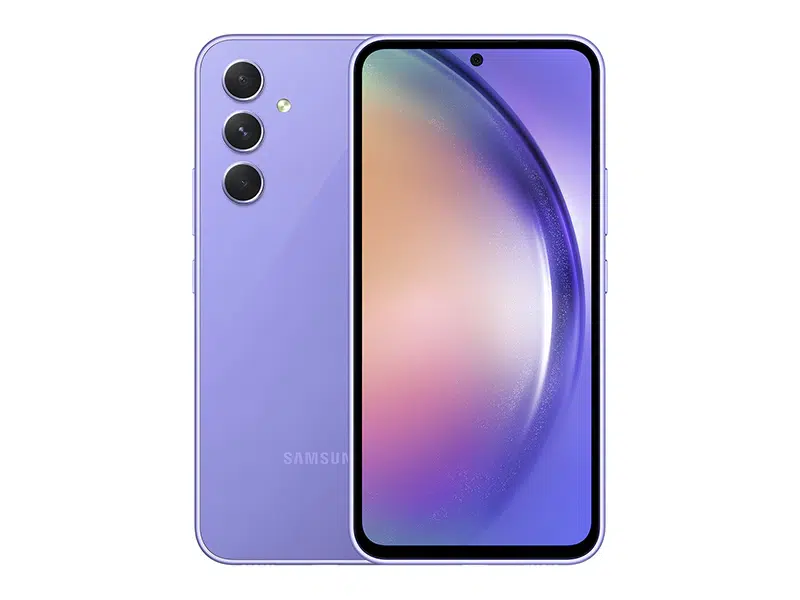
Processor: Mediatek Helio G99 | Display: 6.5-inch super AMOLED | RAM: 4GB, 6GB, 8GB | Storage size: 128GB, 256GB | OS: Android 14 (upgradable until 2027) | Cameras: 13MP front, 5MP ultra-wide, 50MP main, 2MP macro | Battery: 5000mAh | Earphone jack: 3.5mm | Price: $199
Budget range phones typically give up many quality features, but the A15 5G stands out among them. This recently launched phone suits you if you prioritize communication and other basic needs over excessive elements like advanced AI.
You'll still have the same 5000mAh battery, a large 6.5-inch AMOLED display that brightens up to a fair 800 nits and refreshes at 90hz. However, because of its lower power, the MediaTek 6100 processor powering it still causes a laggy experience and is not fit for gaming or heavy multitasking.
The base model has 4GB RAM and 128GB storage space, but you can also get it in 6GB or 8GB RAM and 256GB storage variations. If you need more than that, you can expand it up to 1 terabyte with an SD card.
The phone is simple yet visually appealing, especially in the blue-black, light blue, and yellow colors. But the rear is plastic, and it has no IP ratings. Since it's more prone to cracks and water damage, you'll want to protect it with a case and be mindful of how you use it.
It's now easier to choose your dream phone
Samsung offers a diverse range of phones, and we've made it less difficult for you to decide. However, most of their devices fall on the premium side. If you've considered all the aforementioned factors and decided that the brand isn't for you, there are others that can fetch you a solid flagship for way less. For starters, you could try Oppo's top-rated phones. Their technology isn't up to par with Samsung, but they're generally more affordable and have unique designs.

